



Overview
This guide shows you how to install and connect your WooCommerce store with EdgeTariff so that the plugin can provide the functionality for Product Pre-Classification (PPC), Estimated Duties &
Taxes (EDT) and Restricted Party Screening (RPS).
Pre‑Requisite Steps
Before starting with this guide make sure that you have:
1. Access and authority to install plugins into your WooCommerce store.
2. Signed up to and EdgeCTP (https://edgectp.com/signup/) and have received the relevant login credentials on your sign‑up email address.
3. Confirmed that the EdgeCTP login is working and you have logged in successfully.
4. Connected your WooCommerce store to EdgeCTP (i.e., Settings > eCommerce > WooComm.) and set the relevant store connection details.
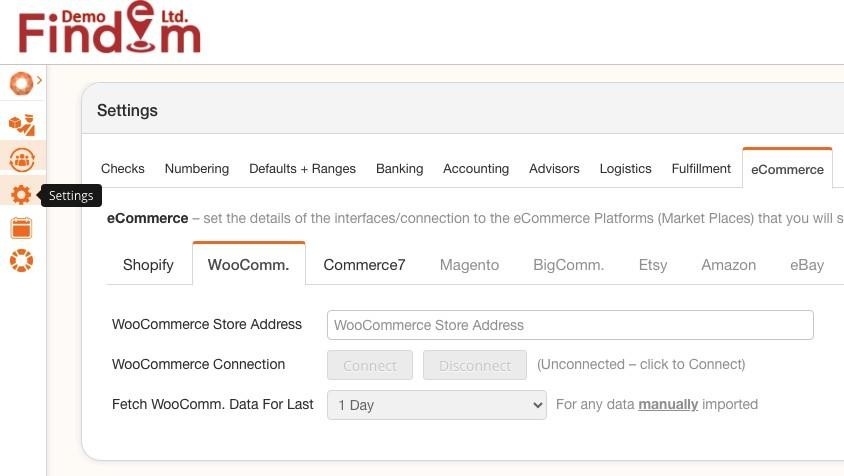
Having completed the above steps, you can now continue with the reminder of this guide, in sequence, to conclude the finish of EdgeTariff.
Installing the EdgeTariff plugin
You can install the EdgeTariff plugin using either of the two methods below:
Option 1: Install from WordPress Plugin Directory (Recommended)
1. Go to WordPress Admin → Plugins → Add New Plugin
2. In the search bar, type “EdgeTariff”
3. Locate the EdgeTariff plugin
4. Click Install Now
5. After installation, click Activate
Option 2: Install by Uploading the Plugin ZIP File
1. Download the EdgeTariffWooCommPlugin.zip file
Note: Get the EdgeTariffWooCommPlugin.zip file from within EdgeCTP (Settings >eCommerce > WooComm.) or download from WordPress Plugins Directory.
2. Go to WordPress Admin → Plugins → Add New Plugin → Upload Plugin
3. Upload the ZIP file
4. Click Install Now, then click Activate
After Activation
Once activated, the system will automatically redirect you to the EdgeTariff setup screen.
Connecting WooCommerce with EdgeTariff
This section shows you how to connect your WooCommerce store with EdgeTariff.
1. Login to EdgeCTP and navigate to Settings > eCommerce > WooComm. and make sure you have access to the Connection Keys.
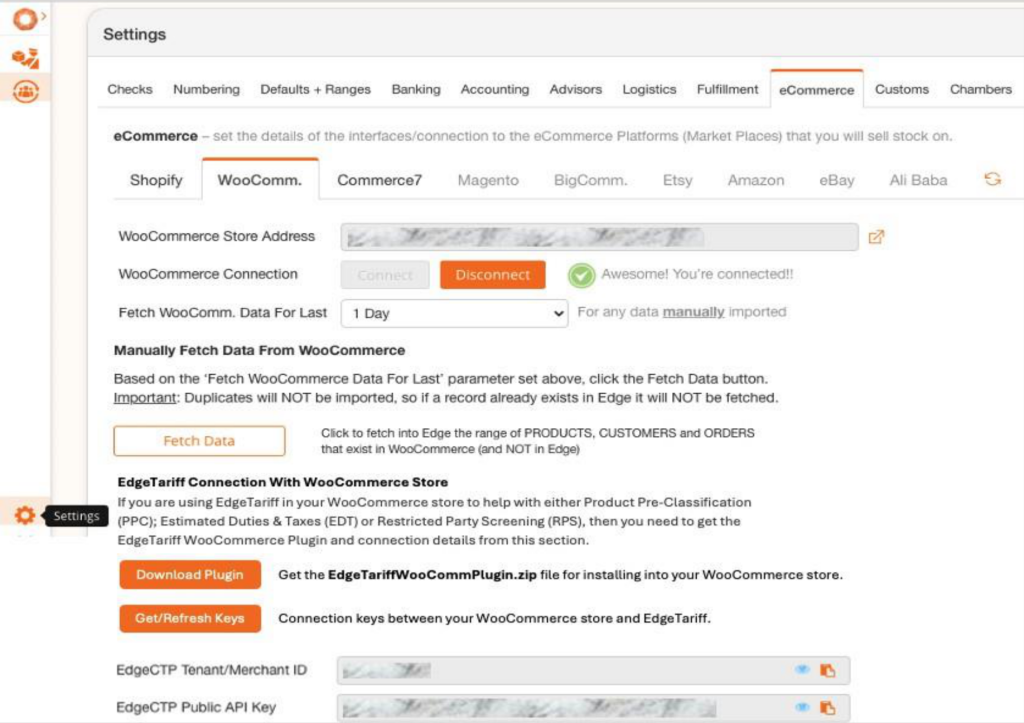
2. You now need to copy the two keys: EdgeCTP Tenant/Merchant ID and EdgeCTP Public API Key and paste them into the connection section of the EdgeTariff plugin
in your WooCommerce store.
3. Login to your WooCommerce store and in the left menu, click on EdgeTariff and add/paste the connection keys from EdgeCTP into the EdgeCTP Tenant/Merchant ID and
EdgeCTP Public API Key values.
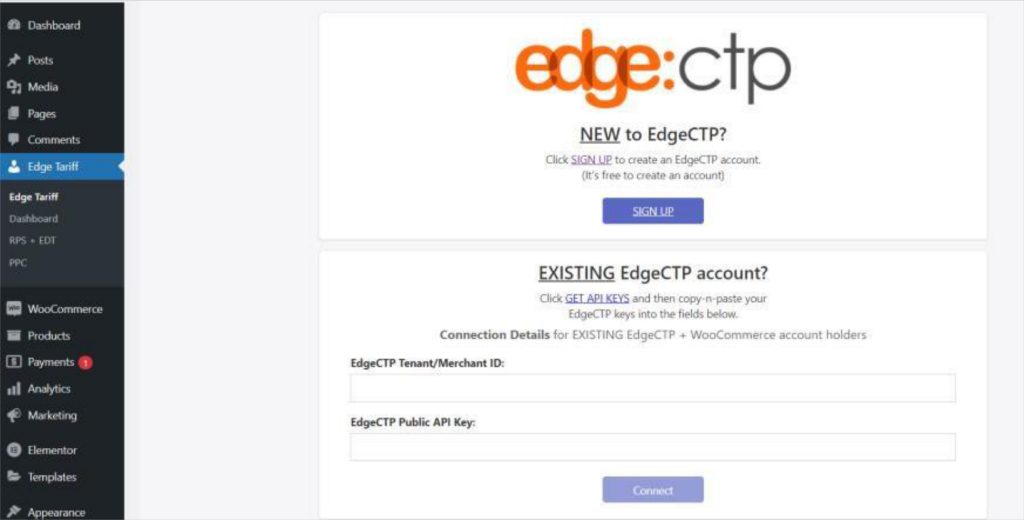
4. Click on Connect button and wait a few moments for the connection to be established.
5. Once the connection is established you will see the Connected screen.
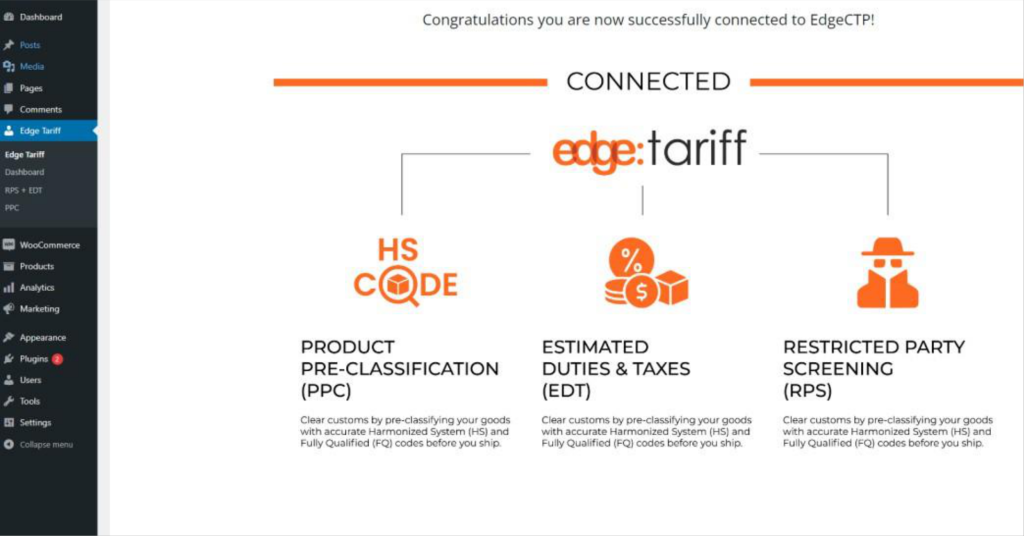
You have now connected the EdgeTariff plugin from your WooCommerce store to EdgeTariff in EdgeCTP.